Running an Extraction
Lift Off adapts to your starting point. Start from a live QuickBooks company file for a full five-step extraction, or load a previously extracted snapshot or Migration Package to jump straight to Verify.
Choosing a source
In the Setup wizard, select your source type:
| Source | When to use |
|---|---|
| QB Desktop | Full extraction from a live QuickBooks company file (Windows only). Runs all five steps. |
| Snapshot | Load a previously extracted .ndjson.gz snapshot or a .migr8.pivoten.zip Migration Package. Skips Steps 1–2 and starts at Verify. |
On macOS, click Create Workspace to create a workspace at ~/Documents/Lift Off/ automatically — no folder picker is shown. Remember a Mac can only verify and upload a snapshot already extracted on Windows — it cannot extract (see System Requirements → macOS).
Before you start — customer checklist
Hand this list to the customer (or work through it together) before running an extraction. Reports are pulled from QuickBooks automatically by Lift Off — no manual export is required. The bank & credit-card reconciliation PDFs are an optional attachment for the one figure QuickBooks won't hand the tool (statement ending balances); pulling your own report PDFs is also optional but recommended as an independent cross-check at sign-off.
1. Pick and freeze a cutover date. Decide the “as of” date the migration represents — usually the last day of the most recently closed period. Every balance (Trial Balance, AR/AP aging, inventory, bank reconciliation) is captured as of this date. Avoid entering or back-dating transactions dated on or before the cutover once the extraction has run; if you do, re-run the extraction so the snapshot stays current. Note that the cutover is separate from the extraction date range in Setup: leave that range blank (the default) so the snapshot captures all history — Lift Off is a complete backup, and setting a range excludes everything outside it. Lift Off warns you if a range is set.
2. Get the company file ready (Windows). Extraction runs on the Windows PC where QuickBooks Desktop and the company file (.qbw) live. Sign in as the Admin user, switch to Single-user Mode (File → Switch to Single-user Mode), and confirm the file opens cleanly. Running File → Utilities → Verify Data first is recommended — it catches file corruption before it becomes a migration problem. By default Lift Off extracts from whatever company file QuickBooks currently has open (the Use the company file open in QuickBooks option in Setup), so just make sure the correct company is open in QuickBooks before you start. To point it at a specific file instead, turn that option off and Browse to the .qbw.
3. Export the bank & credit-card reconciliation reports — optional (recommended). Lift Off captures each transaction's cleared status automatically, but the statement ending balances are the one set of numbers QuickBooks will not hand the tool.
For each bank and credit-card account: Reports → Banking → Previous Reconciliation → choose the account → select the most recent statement → Display → save as PDF. Attach one file per account in Step 1 using Add account. These provide the statement ending balances and reconcile dates the extractor cannot read, so your first reconciliation after migration starts from the right place. They are optional — you can continue without them.
4. (Recommended) Export reference PDFs for sign-off. Lift Off fetches the reports below automatically, but pulling your own PDF copies — dated to the cutover date — lets you check the Migration Readiness Report against QuickBooks' own numbers and sign off with confidence. Set each report's date to the cutover date; for the period reports (Profit & Loss, Sales by Item, Journal), set the range from the start of history through the cutover date.
| Report | QB menu path | What it confirms |
|---|---|---|
| Trial Balance | Reports → Accountant & Taxes → Trial Balance | Every account's ending debit/credit balance |
| Balance Sheet Standard | Reports → Company & Financial → Balance Sheet Standard | Asset / liability / equity balances |
| Profit & Loss Standard | Reports → Company & Financial → Profit & Loss Standard | Income / expense for the period |
| A/R Aging Detail | Reports → Customers & Receivables → A/R Aging Detail | Open customer balances |
| A/P Aging Detail | Reports → Vendors & Payables → A/P Aging Detail | Open vendor balances |
| Open Invoices | Reports → Customers & Receivables → Open Invoices | Line-level open AR |
| Unpaid Bills Detail | Reports → Vendors & Payables → Unpaid Bills Detail | Line-level open AP |
| Inventory Valuation Summary | Reports → Inventory → Inventory Valuation Summary | Per-item asset value (inventory only) |
| Sales by Item Summary | Reports → Sales → Sales by Item Summary | Per-item revenue (items only) |
| Journal | Reports → Accountant & Taxes → Journal | QuickBooks' own debit/credit posting view |
5. After extraction, review the Migration Readiness Report. In Step 3, click Download Report and confirm: the Balanced badge is green, the coverage period matches your intended date range, and the What This Migration Does Not Include list contains nothing you actually need migrated. Compare the report's balances against the PDFs from step 4 and raise any variance with your Pivoten contact before uploading.
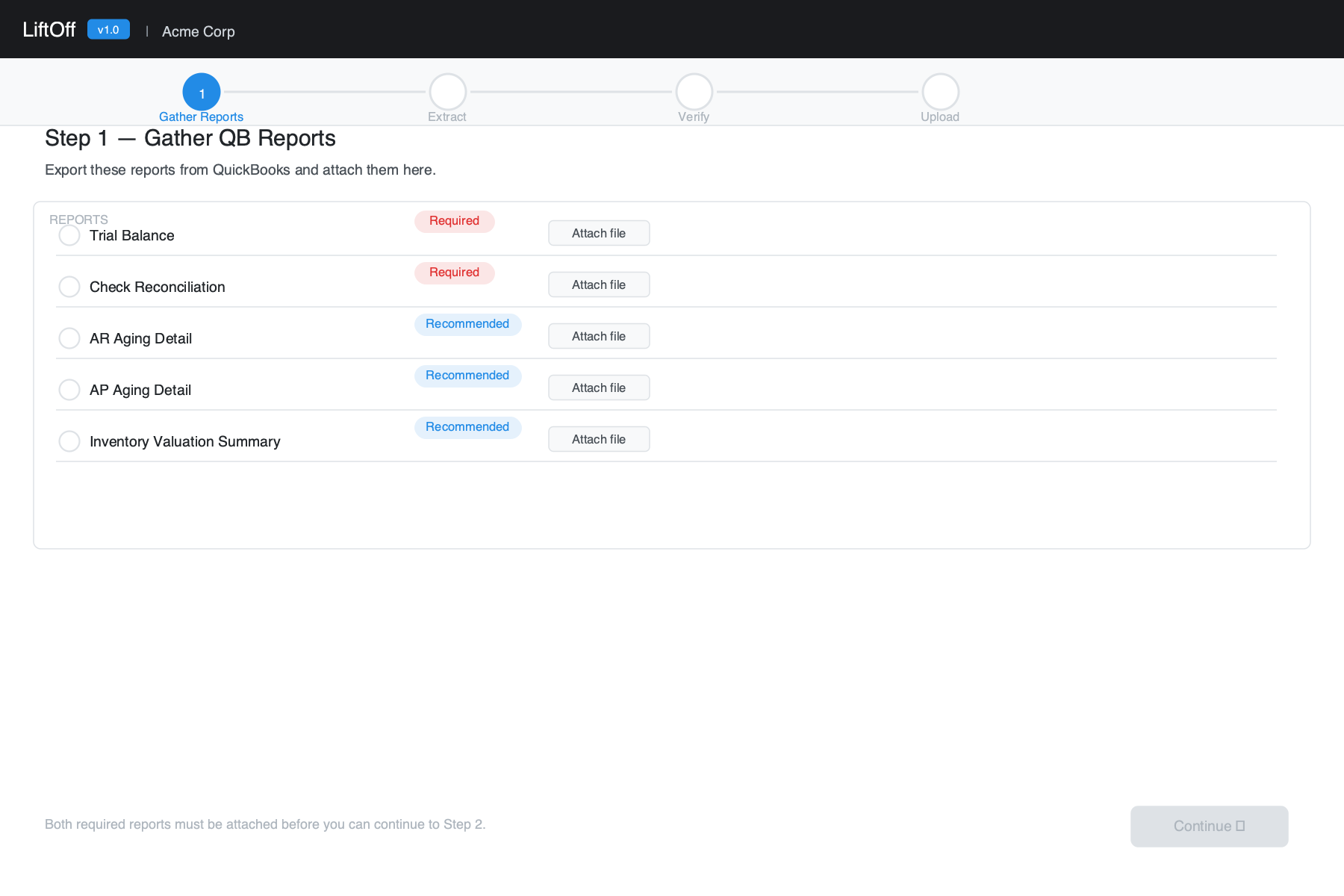
Step 1 — Gather QB Reports (QB Desktop only)
Before extracting, export the following reports from QuickBooks and attach them in Lift Off. These reports give Pivoten the reference data needed to verify the migration and reconcile balances.
| Report | QB menu path | Required? |
|---|---|---|
| Trial Balance | Reports → Accountant & Taxes → Trial Balance | Auto-fetched |
| Check Reconciliation | Reports → Banking → Previous Reconciliation | Optional (override) |
| AR Aging Detail | Reports → Customers & Receivables → A/R Aging Detail | Auto-fetched |
| AP Aging Detail | Reports → Vendors & Payables → A/P Aging Detail | Auto-fetched |
| Retained Earnings Detail | Reports → Company & Financial → Statement of Retained Earnings | Auto-fetched |
| Inventory Valuation Summary | Reports → Inventory → Inventory Valuation Summary | Auto-fetched |
| Open Invoices | Reports → Customers & Receivables → Open Invoices | Auto-fetched |
| Unpaid Bills | Reports → Vendors & Payables → Unpaid Bills Detail | Auto-fetched |
| Profit & Loss (by year) | Reports → Company & Financial → Profit & Loss Standard | Auto-fetched |
| Balance Sheet (by year) | Reports → Company & Financial → Balance Sheet Standard | Auto-fetched |
| Sales by Item | Reports → Sales → Sales by Item Summary | Auto-fetched |
| General Journal | Reports → Accountant & Taxes → Journal | Auto-fetched |
Retained Earnings Detail: Fetched automatically from QuickBooks during extraction via the QBXML general ledger API — no manual export needed. This captures the equity accounts' opening balances and posted activity. Note that QuickBooks' year-end closing entries are virtual — QB computes them on the fly to display Retained Earnings and current-year Net Income and does not expose them through any QBXML report — so Pivoten reconstructs the correct Retained Earnings balance from the full General Ledger and each fiscal year's net income rather than from closing entries.
Trial Balance: Fetched automatically from QuickBooks during extraction — no manual export needed. Lift Off fetches a separate Trial Balance for each fiscal year that actually contains transactions (the year range is derived from the data, so empty leading years are never requested), as of each year's fiscal year-end — which Lift Off reads from the company file and is not assumed to be December 31. This gives Pivoten year-by-year balance data for a cleaner migration. If you need to override it, click Override and attach a CSV, XLS, or XLSX file.
AR Aging / Open Invoices / AP Aging / Unpaid Bills: Fetched automatically as of the extraction end date for the reconciliation cross-check. The Migration Readiness Report cross-checks these two pairs against each other (they should agree) and shows the reconciler's computed AR/AP balance as a reference estimate. These same reports are also captured as of each fiscal year-end as part of the by-year report archive (below), so you can see what was open at any prior year-end.
Profit & Loss, Balance Sheet: Fetched for each fiscal year that contains data, aligned to the company's fiscal year-end (not assumed to be December 31). Stored in the snapshot and rendered in the Migration Readiness Report as reference data for validating the income/expense and asset/liability sides of the migration.
Sales by Item: Fetched for the full extraction date range. Stored in the snapshot and rendered in the Migration Readiness Report to support item-level revenue mapping validation.
General Journal: Fetched per fiscal year (using the company's fiscal-year start and the earliest transaction date) — QuickBooks' own debit/credit view of every transaction. It is fetched year by year rather than all-at-once because a single multi-decade Journal overflows QuickBooks' report engine on large company files. The Migration Readiness Report confirms the journal's total debits equal its total credits and lists per-account debit/credit activity, giving Pivoten the authoritative figures to balance the migrated General Ledger against.
Inactive / archived records are included. Every list Lift Off reads — the chart of accounts, items (including sales-tax and subtotal items), customers, vendors, employees, classes, price levels, sales reps, payment methods, ship methods, terms, currencies, units of measure, payroll items, and more — is fetched with all entries, active and inactive. This is required, not optional: a transaction from years ago often references an account, item, or name that has since been made inactive (QuickBooks does not allow deleting a list entry that any transaction uses — it makes it inactive instead). Pulling the full list ensures every historical transaction line resolves and the migration balances. For each account, Lift Off keeps its full detail — the original QuickBooks number exactly as entered (even when it's blank or non-standard), its parent/sub-account hierarchy, and its Tax-Line Mapping — so nothing about the chart is lost; any fitting to a target system's limits happens later, at conversion, never to the captured data.
Each record is captured in full. Beyond the headline fields, Lift Off keeps the complete record for every entity: all addresses (structured and the exact as-printed address block), every additional contact, the full dated note history, custom fields, the QuickBooks external ID, and each transaction's QuickBooks transaction number. Employee records include employment details and payroll setup (pay schedule, wage items, and sick/vacation accrual) plus the HR and demographic fields QuickBooks holds.
Because the snapshot is a faithful, complete backup, it includes sensitive personal data QuickBooks stores — employee Social Security numbers and, where present, demographic/EEO fields (date of birth, gender, ethnicity, disability, veteran/military status) and work-authorization details. Store, transmit, and retain the snapshot and Migration Package accordingly. Raw payment-card numbers and authorization data are deliberately not captured.
Bank & Credit Card Reconciliation: Each bank and credit-card transaction's cleared status (cleared, uncleared, or pending) is captured during extraction. The Migration Readiness Report adds a Bank & Credit Card Reconciliation section showing, per account, the uncleared (“in transit”) amount as of the extraction date — what will appear outstanding on your first reconciliation after migration. This complements the Check Reconciliation files you attach in Step 1, which provide the statement-level ending balances that QuickBooks does not expose to the extractor. As an additional archive, Lift Off also captures a bank transaction cleared-status report (Transaction Detail by Account, with the cleared-status column) for each fiscal year — the closest substitute available, since QuickBooks' actual reconciliation reports and statement balances are not exposed through its data API at all and remain a manual export.
Complete by-year report archive: Beyond the reports above, Lift Off captures a set of QuickBooks reports for every fiscal year that contains data, so the snapshot is a complete backup you can always review without reopening QuickBooks. For each fiscal year it stores: the summary financial statements (Trial Balance, Profit & Loss, Balance Sheet — kept as typed rows), the General Journal, A/R and A/P Aging (both detail and summary), Open Invoices and Unpaid Bills, Inventory Valuation, Sales Tax Liability, Sales by Item / Sales by Customer / Purchase by Vendor, 1099 Detail, the bank cleared-status report above, and payroll reports when the company runs QuickBooks payroll. These are stored faithfully as generic report grids (snapshot entity type report-capture), paged across records so no single report can overflow the reader. The full-detail statement reports (General Ledger, Balance Sheet Detail, P&L Detail, Customer/Vendor Balance Detail) are intentionally not captured as year-end grids: they re-render every transaction back to inception, balloon year over year, and duplicate what the snapshot already holds in full as structured transactions plus the General Journal. Any report QuickBooks cannot return for a given year is recorded as skipped (see below) rather than silently omitted, so a partial backup never looks complete.
Snapshot integrity check: Immediately after the snapshot is written, Lift Off re-opens and streams the whole file, confirming it decompresses cleanly and that its record counts match the manifest. A truncated or corrupted file is flagged in the result (and in the run history) rather than being delivered as a complete backup.
What QuickBooks can't export: A small set of things are not available through QuickBooks' data API at all — most notably bank reconciliation reports/statement balances (the optional PDF above) and document attachments. See docs/qbxml-limitations.md for the complete, honest list of what can and cannot be captured, and how each gap is handled.
Check Reconciliation: Optional. Export as PDF or XLS and click Add account to attach one file per bank account if you want statement ending balances on hand for the first post-migration reconciliation; otherwise skip it. No attachments are required to continue.
Step 2 — Configure & Extract (QB Desktop only)
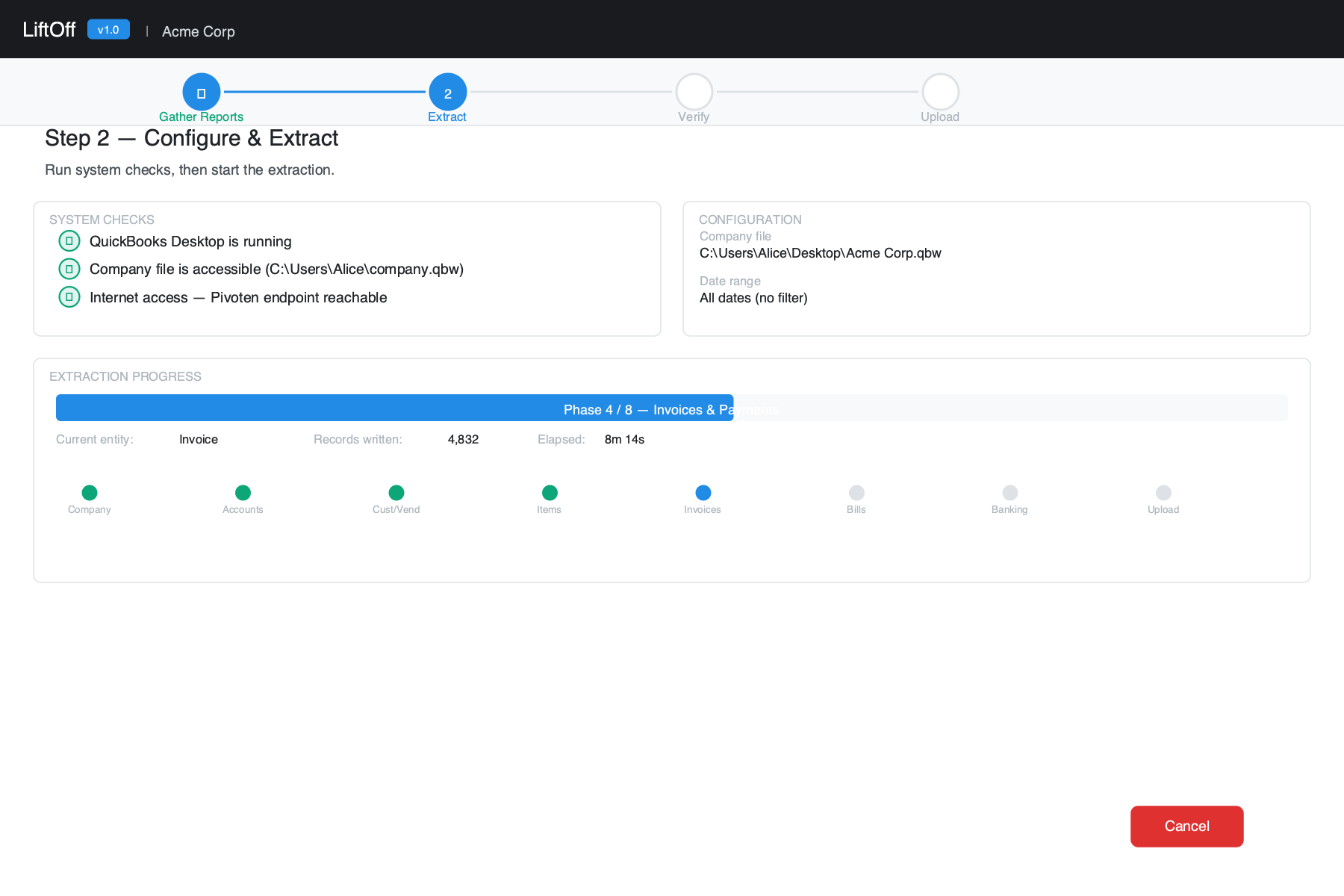
The extraction panel shows System Checks at the top. All three must pass before extraction can begin:
| Check | What it verifies |
|---|---|
| QuickBooks Desktop | QuickBooks is running on this computer |
| Company File | The configured .qbw file exists and is readable |
| Internet Access | Your computer can reach Pivoten's upload endpoint |
If a check fails, a suggested fix appears below it. Click Check again after resolving the issue.
Once checks pass, click Start Extraction. Lift Off will:
-
1
Connect Open a QBXML session with QuickBooks. On first connection, QuickBooks may show a permission dialog — click Yes, always allow access to grant permanent access.
-
2
Extract Read all QuickBooks data in dependency order: lookup tables first, then name lists and items, then transactions. A progress bar shows the current phase, entity type, and record count. (Paychecks aren't queried individually — QuickBooks exposes no paycheck query — but their postings are captured in full through the General Journal, so they still tie out in the balance check.)
-
3
Package & upload Fetch a Trial Balance, Profit & Loss, Balance Sheet, AR/AP Aging, Open Invoices, Open Bills, Inventory Valuation, Sales by Item, and the General Journal from QuickBooks — then compress everything into a snapshot file and upload to Pivoten. Large snapshots upload in chunks automatically — no action required on your part.
Do not close QuickBooks while an extraction is in progress. Closing QB will interrupt the QBXML session and fail the extraction. You can continue using QB normally, though it may feel slower.
Lift Off saves a checkpoint after each completed entity type. If the extraction is cancelled or fails mid-run, clicking Start Extraction again resumes from the last successful step. Checkpoints are kept for 48 hours.
While an extraction is running, Reconfigure extraction and Switch workspace are disabled in the workspace menu, and the sign-out button is unavailable. You must cancel the extraction first before changing workspaces or reconfiguring. If you close and reopen the app while an extraction is running, Lift Off automatically returns you to Step 2 so you can monitor progress.
Loading a Snapshot or Bundle (Snapshot source only)
When your source type is Snapshot, Step 1 shows a file picker in place of the QB Reports panel.
- Select a
.ndjson.gzsnapshot file, or a.migr8.pivoten.zipMigration Package (see Migration Package below). - Click Load Snapshot. Lift Off reads the manifest, validates the file, and advances to Verify.
No QB connection is needed. This path is typically used to verify and upload a snapshot on macOS after extracting on a Windows machine.
Step 3 — Verify
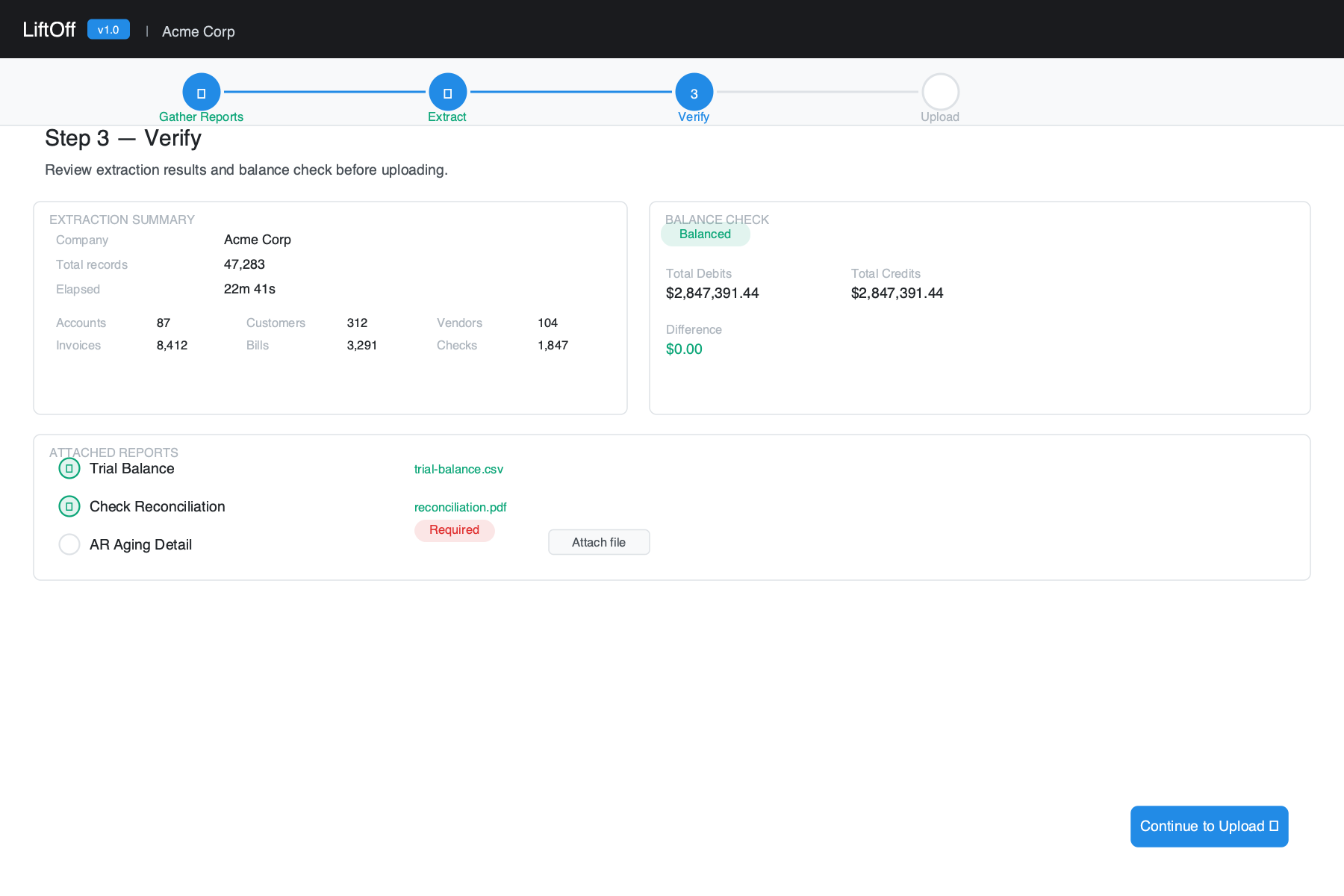
After extraction completes (or a snapshot is loaded), the Verify step shows:
- Extraction report — record counts for every QuickBooks entity type extracted, total records, company name, and elapsed time.
- Balance check — Lift Off computes total debits and credits from the extracted data and matches them against the most recent year-end Trial Balance. A green Balanced badge means they agree; an orange badge means a variance was found (you can still continue — Pivoten will investigate). Some QuickBooks transactions (paychecks, payroll-tax and sales-tax payments) cannot be queried individually, so the report uses QuickBooks' own General Ledger to complete any account whose transactions don't fully account for its activity, then confirms the completed books balance — every account's debits and credits net to zero across the whole ledger, apart from any item lines QuickBooks itself left without an account (surfaced separately as Unresolved Items). Its General Ledger Reconciliation section shows how much was recovered from the GL, which accounts it filled, and the GL-implied net income (which sits on the balance sheet because QuickBooks closes prior years into Retained Earnings only virtually). Click Download Report to save a detailed HTML Migration Readiness Report showing the full variance breakdown by account. The report's Extraction Statistics section lists a count for every extracted data type — transactions, names, the chart of accounts and items, and all lists & settings (terms, classes, price levels, currencies, sales reps, payment methods, units of measure, and more) — so you can confirm exactly what was captured. Any type without a dedicated label still appears under Other Extracted Data, so nothing is hidden. If any records could not be read (a corrupt or truncated snapshot), the report flags them as ACTION NEEDED rather than silently omitting them — no data is ever discarded without notice. The report also states the coverage period (the transaction date range covered) and a What This Migration Does Not Include section listing QuickBooks data that extraction does not capture (attachments, memorized transactions, bank reconciliation history, budgets, custom templates, and more), so there are no surprises at cutover.
- Equity & Retained Earnings — a pre-conversion check on the equity side. QuickBooks closes each fiscal year's net income into Retained Earnings only virtually, so this section states the figures Accounting Manager must reproduce (QuickBooks' reported Retained Earnings and current-year Net Income) and the closing-entry plan the conversion will generate from QuickBooks' own per-year net income, then confirms the extracted ledger's net income reconciles to QuickBooks' summed yearly net income — flagging any difference beyond the Unresolved Items amount for review before converting.
- Attached reports — a checklist of the supporting reports. Trial Balance, Retained Earnings, A/R & A/P Aging, and Inventory Valuation show Auto-fetched (with row counts) since they're captured during extraction — no manual attachment needed. Check Reconciliation shows Optional (the bank cleared status is already captured); attach the Previous Reconciliation PDFs only if you want the statement ending balances.
- Skipped entities — if Lift Off encountered errors on specific entity types, they are listed here. Contact Pivoten support if critical data types were skipped.
This step is advisory — you can proceed to Upload even with warnings. Review any issues and decide whether to re-run the extraction before continuing.
Step 4 — Upload
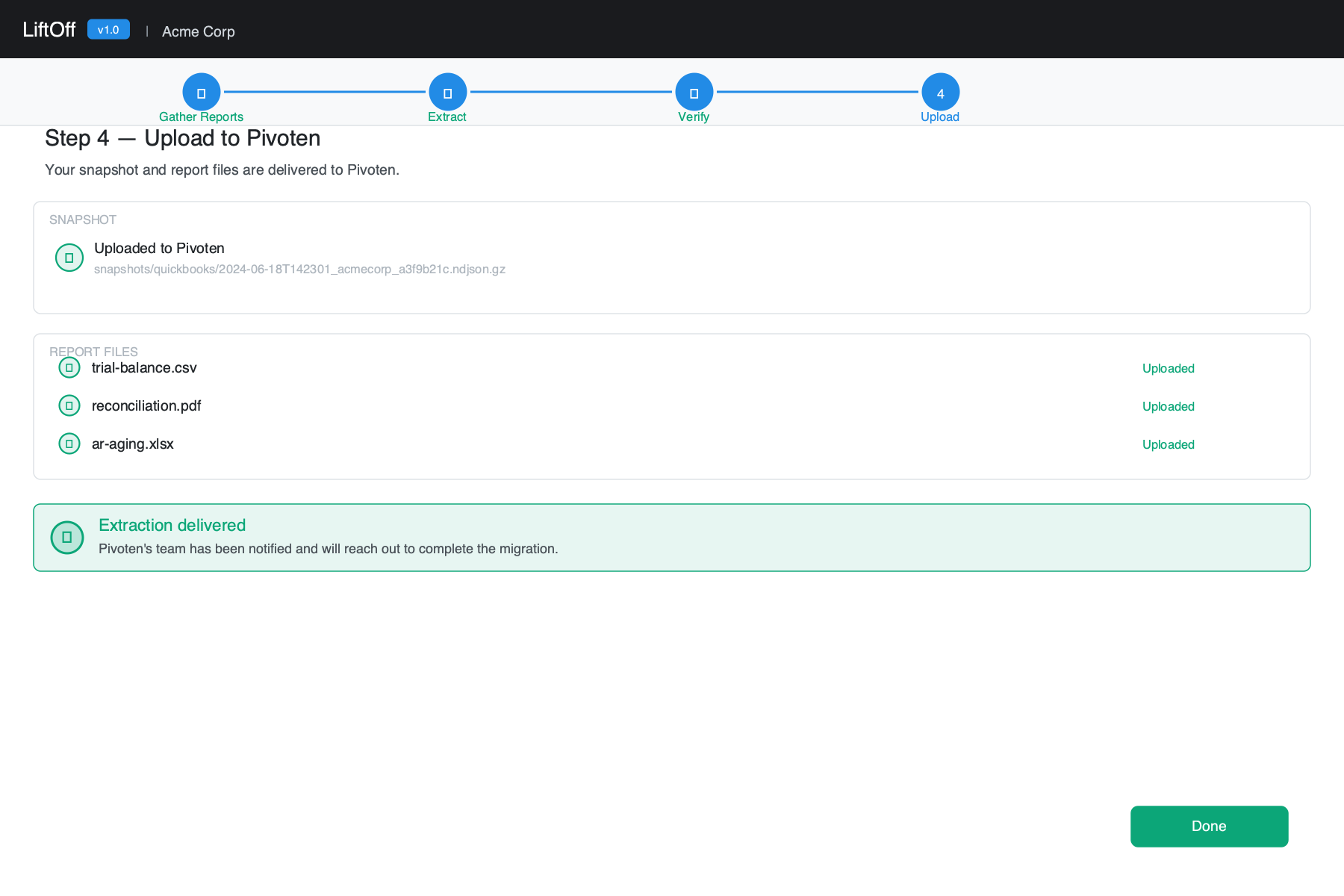
The Upload step delivers everything to Pivoten and lets you create a Migration Package.
Migration Package
Click Create Package to assemble everything into a single, self-contained .migr8.pivoten.zip — the portable unit of truth for the migration. It can be run A-to-Z on one machine, or extracted on a customer's machine and finished on a Pivoten machine; whatever is in the package is everything needed to continue. The package is organized into a clear internal structure:
data/      snapshot (.ndjson.gz) + state.json (machine-readable migration state)
logs/      extraction log and traces
reports/   readiness report (HTML), migration-summary.json, and the bank/CC
           reconciliation PDFs and Trial Balance override you attached
temp/      scratch
migration.md   human-readable state — configuration, results, and a process log
               of what was performed where (machine + timestamp)
state.json and migration.md make the package resumable on any machine: the configuration, results, attached reports, and a process log (each milestone stamped with the machine and time it ran on) travel with the data. The same migration.md is also written as a same-named .md file next to the package, so the workspace's state is readable at a glance without opening the archive. The migration-summary.json aggregate remains a no-PII quality metric (entity counts, balance status, variance and cross-check totals, coverage range) with no customer name or file path.
The package lives locally and is also pushed to S3 (best-effort — a failed or offline upload never loses the local copy). It is named by extraction timestamp and company name:
YYMMDDhhmm.migr8.pivoten.CompanyName.zipFor example: 2606181830.migr8.pivoten.Acme_Corp.zip (with 2606181830.migr8.pivoten.Acme_Corp.md alongside it)
The package can be:
- Archived as a complete audit trail of the migration
- Loaded as a Snapshot source on another machine to re-verify or continue the migration
- Shared with the Pivoten team as a self-contained delivery
Re-opening a workspace resumes from the package. When a workspace folder already holds a Migration Package, re-opening that workspace automatically loads it — restoring the data and the conversion decisions made earlier (account numbers, the step you reached) — and lands you on Verify/Convert rather than a fresh start. If only a loose .ndjson.gz snapshot is present (no package yet), it resumes from that instead. The package is written into the open workspace folder so this resume is reliable.
Click Upload Package to send the bundle to Pivoten's servers. Once uploaded, the storage key is shown as a reference ID.
Report files
Click Upload Reports to send all attached QB report files to Pivoten as standalone companion artifacts. Each file shows its upload status. If a file fails, the error is shown next to that file — you can retry by clicking Upload Reports again. (These same files are also embedded inside the Migration Package's reports/ folder, so the package remains a complete record on its own; uploading them separately simply makes each one individually retrievable in Mission Control.)
Once the snapshot is delivered and reports are uploaded, a confirmation message appears. Contact your Pivoten account team to proceed with the migration into Accounting Manager.
Step 5 — Convert
The Convert step extracts a blank Pivoten Accounting Manager database template into a Converted Data folder alongside your snapshot. This folder is the starting point for populating the AM FoxPro database with your QuickBooks data.
The template (395 FoxPro files — .dbf, .CDX, .FPT, .dbc) is embedded directly in the Lift Off executable — no internet connection is required and nothing extra needs to be installed.
Click Convert to extract the template. The output path is shown on screen and can be copied to the clipboard. The folder is overwritten on each convert, so re-running is safe.
Extraction run report
After every successful extraction Lift Off writes a Markdown report file alongside the snapshot, named YYYYMMDD-HHMMSS-<id>.md. It lands in your configured output directory.
The report records:
- Company name, snapshot ID, date range, and elapsed time
- Record counts per entity type — the authoritative count of every QuickBooks data type extracted
- Skipped entities (if any), with a pointer to the log file
- Whether the Trial Balance was auto-fetched and how many rows it contained
Keep the run report alongside the snapshot. If questions arise during migration ("why are there only 5,000 invoices?"), the run report is the first thing to check — it tells you exactly what Lift Off saw at extraction time without needing to decompress the snapshot. The Migration Package bundles this information together with the snapshot and HTML readiness report for easy sharing.
How long does it take?
| Company file size | Typical extraction time |
|---|---|
| A few years of history, moderate volume | 15 – 45 minutes |
| Many years of data or high transaction count | 45 minutes or more |
The upload adds a few minutes on top of extraction time, depending on your internet speed.
Troubleshooting
On first connection, choose Yes, always allow access so Lift Off does not prompt on subsequent runs.
Open QuickBooks Desktop and load your company file, then click Check again on the System Checks panel in Step 2.
The path saved in your workspace no longer points to the .qbw file. Use Reconfigure extraction… from the workspace menu (top-right corner) to browse for the file again.
Your internet connection is down, or a firewall is blocking outbound HTTPS traffic to s3.amazonaws.com:443. Check your network settings or contact your IT department.
Click Start Extraction again — Lift Off resumes from the last completed step rather than starting over. If the error recurs on the same step, check the log file path on the error screen and include it when contacting Pivoten support.
Make sure the .zip file is in a location Lift Off can read and is not being blocked by antivirus software. If the bundle was copied from another machine, verify it is fully transferred before opening.
Open the workspace menu (top-right corner) and select Enable verbose logging. This writes additional detail to the log file. Disable it after troubleshooting to avoid large log files.
Reopen Lift Off — it will detect the in-progress extraction and automatically return you to Step 2 where you can monitor or cancel it. The extraction goroutine continues running in the background as long as the app is open.